Task 7: AI Enhancements (SNEAK PEAK!)
ThousandEyes is integrating artificial intelligence into its platform to revolutionize how organizations monitor and manage digital experiences. As digital environments grow more complex—with cloud services, hybrid workforces, and increasing dependency on the internet—traditional monitoring tools struggle to keep pace. By embedding AI, ThousandEyes enables proactive detection, rapid diagnosis, and even automated remediation of performance issues across networks and applications. This shift empowers IT teams to move from reactive troubleshooting to predictive and autonomous operations, ultimately ensuring more reliable, efficient, and seamless digital experiences for users.
Step 1: Navigate Event Detection
-
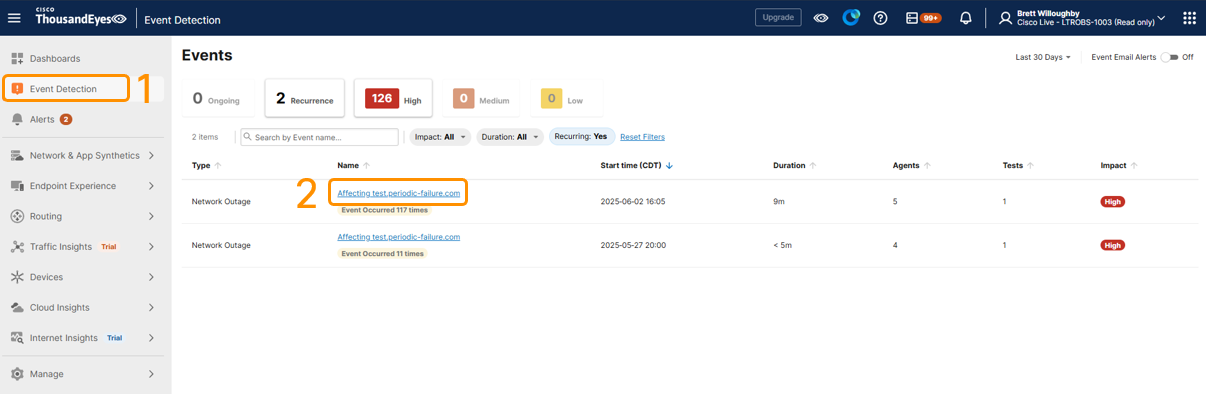
Navigate to the Event Detection section in the menu pane on the left of the page in the main Account Group: Cisco Live - LTROBS-1003. Click on one of the Network Outage Event Links under the Name Column affecting the test.periodic-failure.com Page Load Test.
-
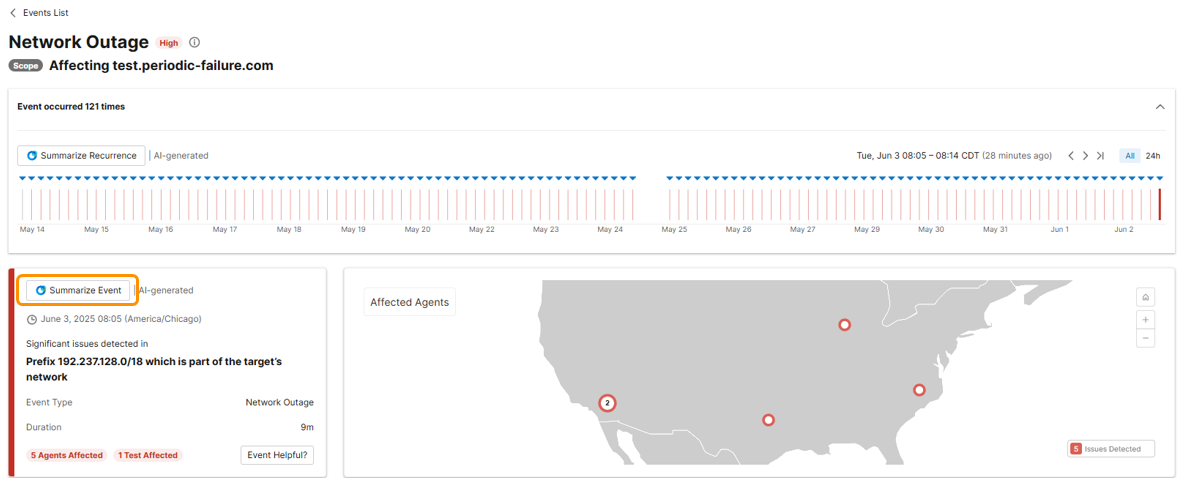
Focus on the Summarize Event section with the red bar on the left side. We are going to utilize LLM and AI built into the ThousandEyes platform to quickly summarize an event that is occurring with our periodic-failure test. Click on the Summarize Event button.
-
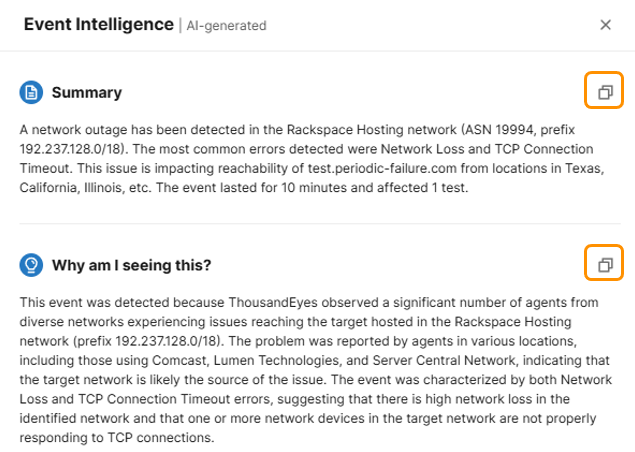
Once clicked, an Event Intelligence pane will slide in from the right side of the screen giving you an AI-generated summary of the event. This will include details of the event such as what is being affected, where the issue is occurring, duration of the event, etc. You will also notice a Why am I seeing this? section that will dive into further detail summarizing the blast radius of the issue and reporting areas. You can also copy these outputs for simplicity of communications to your team, employees, leadership, etc. via the copy button in the top right of each section.
-
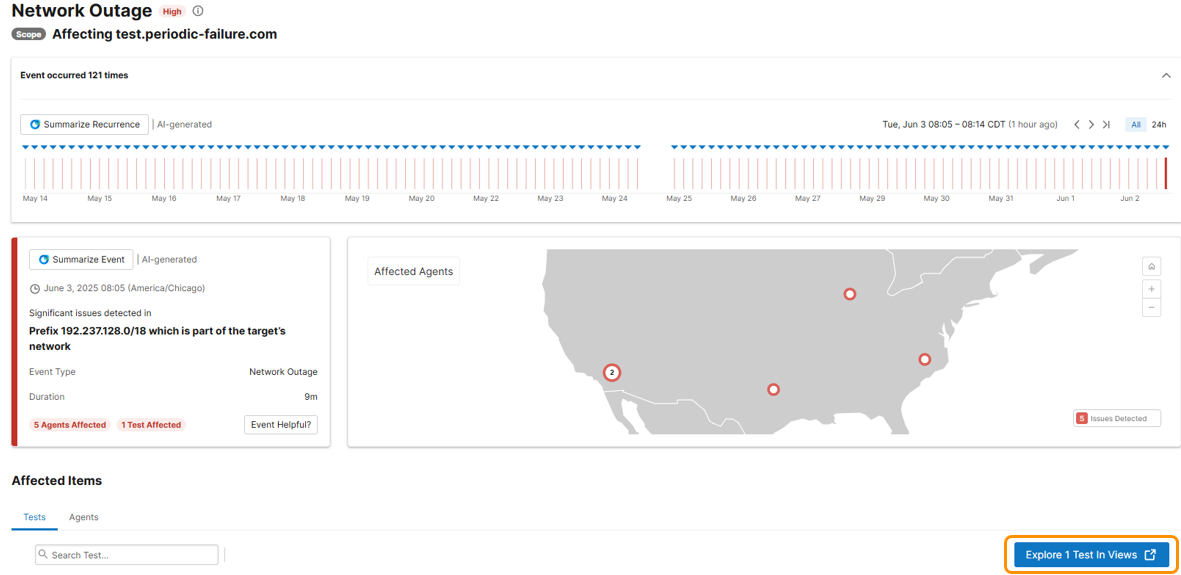
Close the Event Intelligence window so we are back to the Network Outage page for test.periodic-failure.com. Click on the Blue Explore 1 Test In Views Button on the bottom right of your screen. This will spin you directly in to the test view for the affected test at the given time of the event.
-
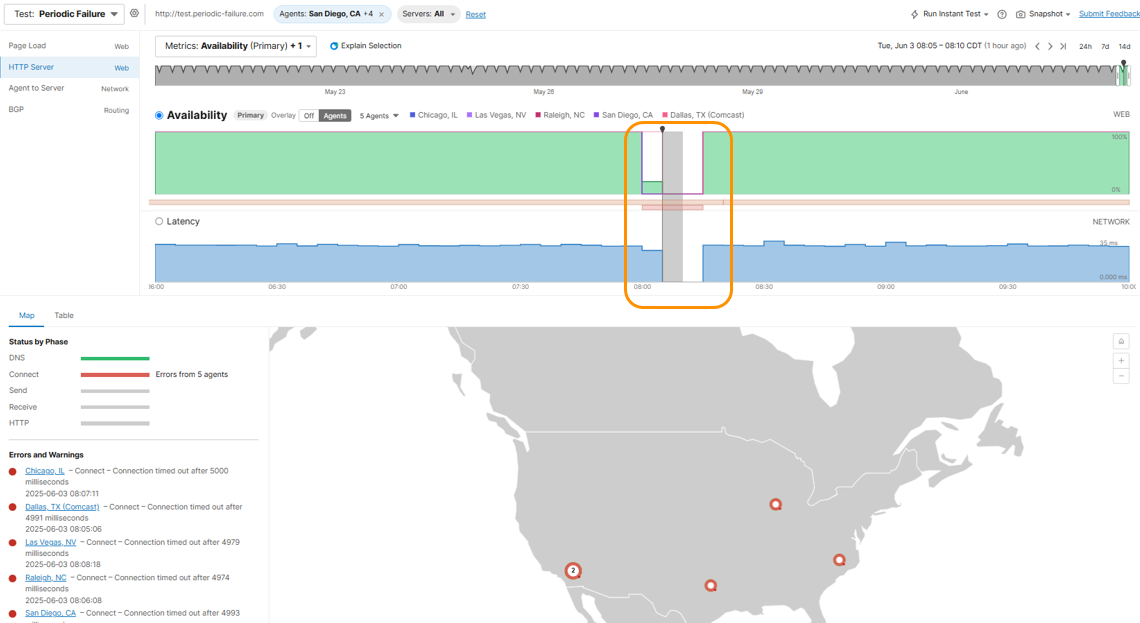
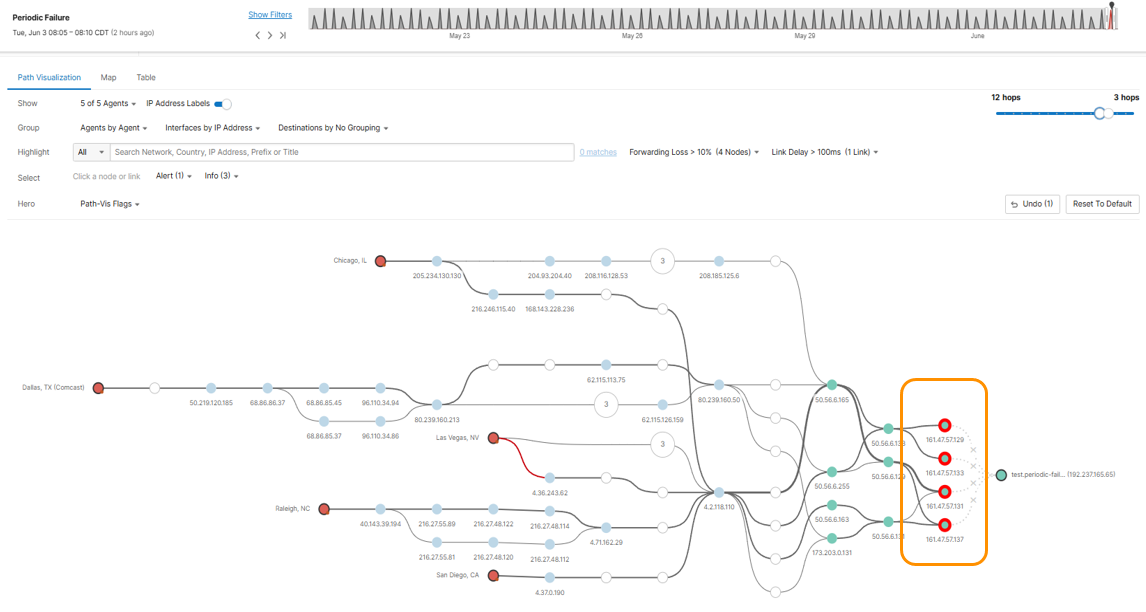
Now we can look at the test view for the affected test exactly at the time of the issue we saw in the Event Detection section of the dashboard. We can clearly see in the HTTP Server Layer that the Availability for this website dropped to Zero, and moving to the Agent to Server Network Layer we can confirm there were issues with several nodes in RackSpace (the company hosting this website). All this information was quickly and easily identifiable via a few clicks for any user of the platform reducing both MTTI and MTTR from days/hours to just a minute or two for any event.
Step 2: Use AI Assistant to Add Context to an Event
Cisco AI Assistant accesses an unmatched breadth and scale of data to more intelligently guide and inform decision-making, helping you to work faster, safer, and smarter. Cisco is building the AI Assistant into many of its platforms, including ThousandEyes. In this section, we will review how ThousandEyes can provide deep context of an outage with only a few clicks using the Cisco AI Assistant.
-
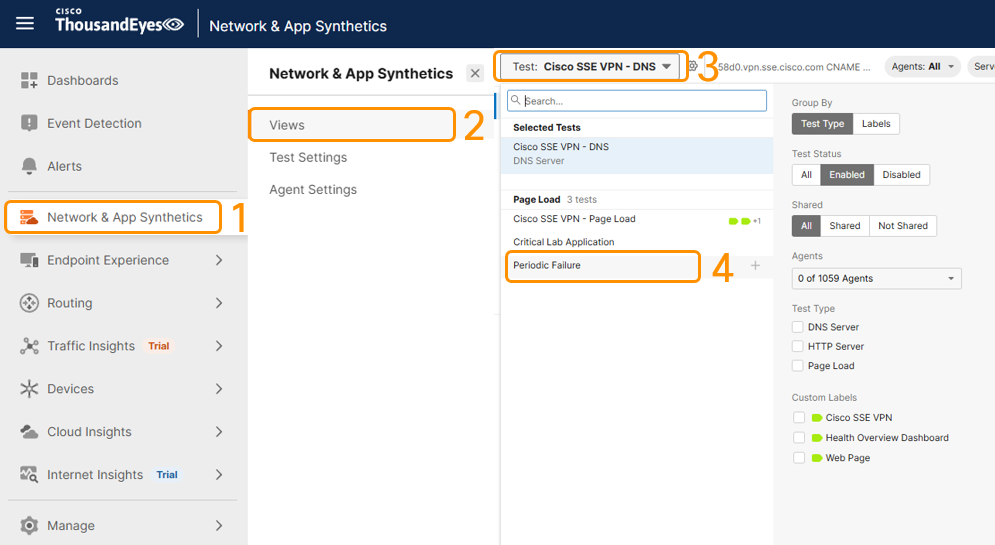
Navigate to the Network & App Synthetics > Views section in the menu pane on the left of the page in the main Account Group: Cisco Live - LTROBS-1003. In the Test: dropdown, select the Periodic Failure Page Load Test.
-
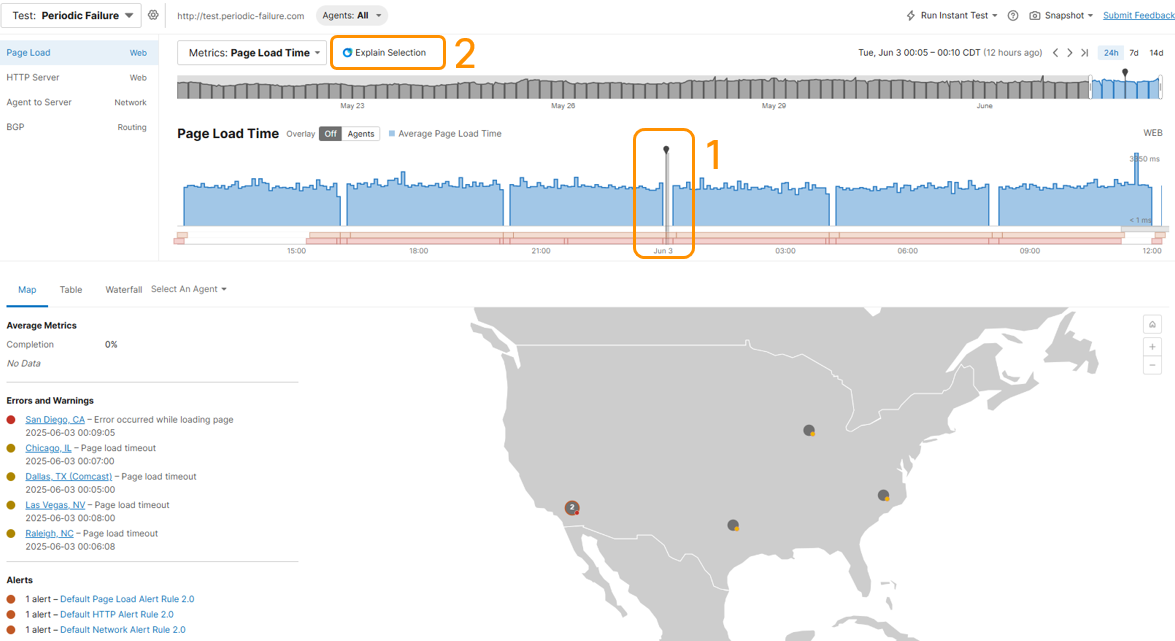
On the Periodic Failure test view in the Page Load layer, select any time segment drop in page load time on the timeline and select the Explain Selection button next to the Metrics: dropdown for the test.
-
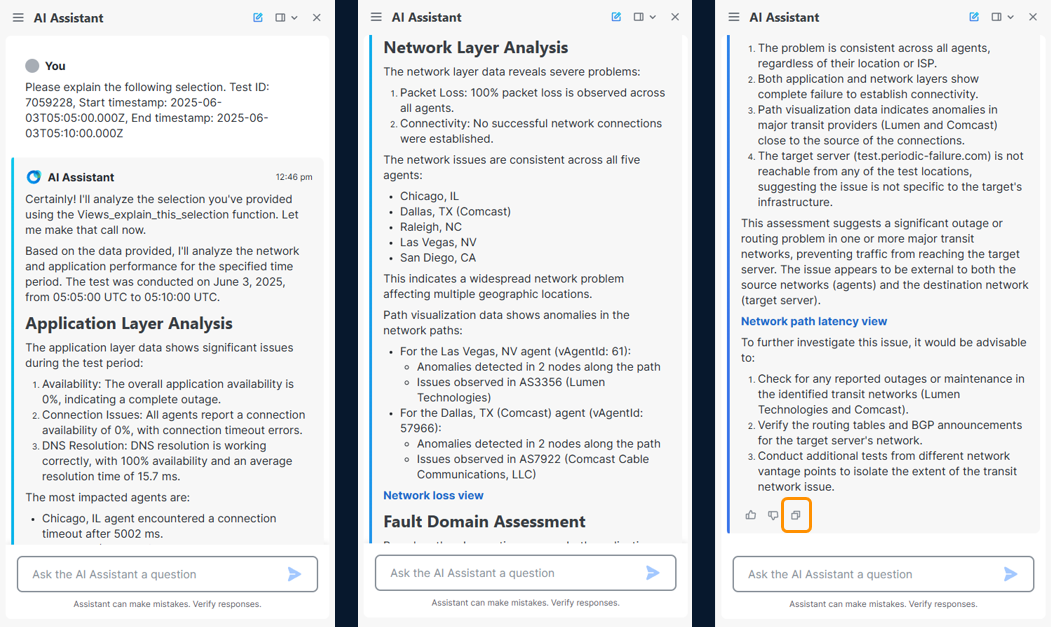
The AI Assistant pane will slide in from the right of the screen and start processing the request. Since we've highlighted a section on the timeline of the test, the AI Assistant will ingest the data from the event, process the output, and display it to the screen providing a very verbose explanation of the test and all layers therein. Once the output is completed, you can also copy (highlighted below) the entire output and paste this into an email, chat, etc. for simplicity of communications to your team, employees, leadership, etc. (these images were taken consecutively scrolling down on the output of the AI Assistant)
Step 3: Navigate AI Assistant for Platform Support
Now lets interact with the AI Assistant outside of a specific issue and ask it a few generalized questions around the ThousandEyes Platform.
-
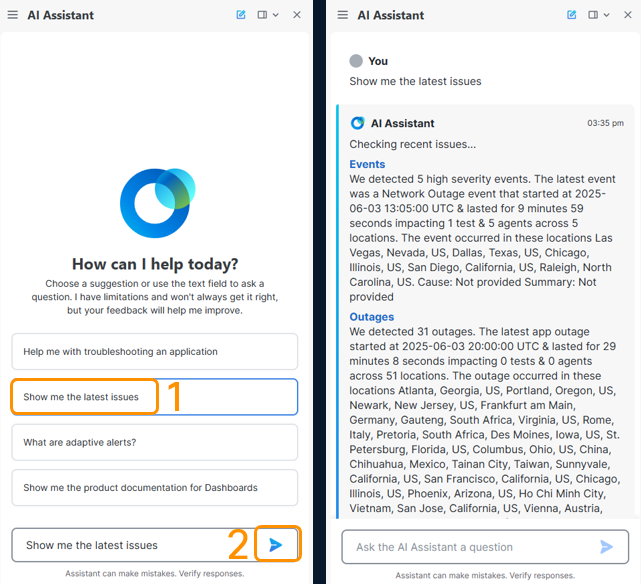
Navigate to the Dashboards section in the menu pane on the left of the page in the main Account Group: Cisco Live - LTROBS-1003. In the toolbar at the top of the page, click on the AI Assistant button. The AI Assistant pane will slide in from the right of the screen asking how to help. Click on the preconfigured Show me the latest issues button and click the send button. The AI Assistant will interact with ThousandEyes and after a few moments, will generate output for recent issues seen within your account group. As seen in the screenshots below, AI Assistant detected 5 high severity events and 31 outages across the account group. Your output may differ slightly from the above due to timing of the commands run within AI Assistant.
-
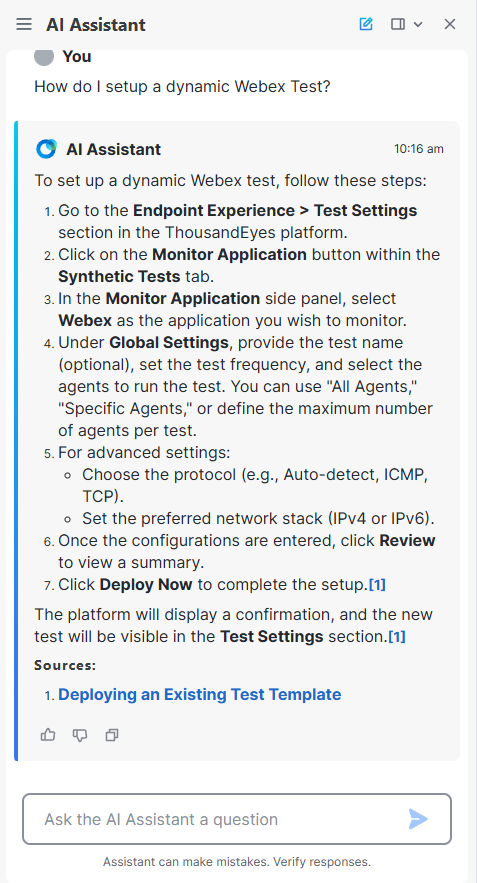
In the upper right corner of the AI Assistant window, select New Thread. Now we will ask the AI Assistant a custom question about how to perform a task in ThousandEyes. To start, lets type How do I setup a dynamic Webex Test? Examine the output.
One of the benefits of the AI Assistant is it is plugged into the documentation repository for ThousandEyes. It will give you detailed instructions on how to setup a test, configure a dashboard, or help with most of the Tasks we completed in this Hands-On Lab. Also notice the link at the bottom of the output. AI Assistant will also include the link to the ThousandEyes Documentation when available.
AI Assistant Challenge
-
Ask the AI Assistant a general question about the platform, a how-to, or a test that is currently configured, and monitor the output.
NOTE: The AI Assistant Integration is still in Beta, it can make mistakes as it is still learning.