Task 1 - Getting Familiar with ThousandEyes
This first task we will make sure our credentials are working correctly and navigate through the dashboard a bit.
-
Login
-
Audit Test Settings in Main Account Group
-
Navigate to your Working Lab Account Group
-
Set Your Local Time Zone
Step 1: Login to your ThousandEyes Account
-
In front of you there is a placard with your lab number on it. That will be used in user id login. For example if your placard reads LAB 1, your user id is lrtobs-1003+lab1@cisco.com. If you have questions on the login the proctors will be floating around the room. Please ask for help.
Click Here to Navigate to the ThousandEyes Login Page
- Example Username: ltrobs-1003+lab{number}@cisco.com
- Password: C1sco12345
-
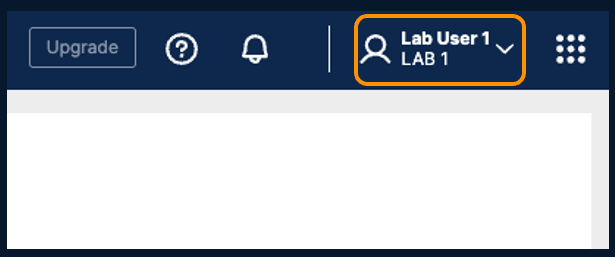
If you logged in correctly, when you log in you should see you lab number at the top right of the screen. An example of LAB 1 is pictured below.
Step 2: Account Groups
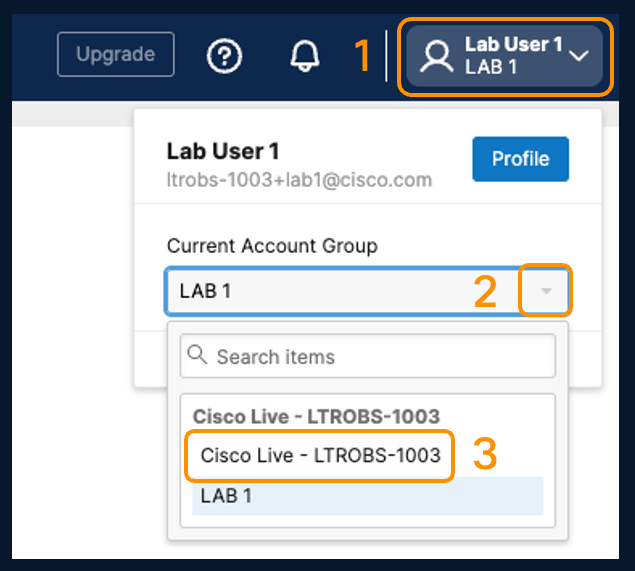
- Every lab user has access to the primary account group and their own account group. The answer guide account is named Cisco Live - LTROBS-1003. Navigate to this primary account group now for the next task.
Step 3: Audit the Current Test Settings and Identify Root Cause of Periodic Failure
-
Audit the Primary Account Group Active Tests.
If you successfully moved into the Cisco Live - LTROBS-1003 account group - on the left hand side navigate to Network & App Synthetics > Test Settings
Note: The tests preconfigured in the primary account group are also the answer guide for the full guided lab. -
Click the layered icon to launch into the test.

-
You will always start by navigating through the Views Panel on the left hand side. The test views start you at the highest layer of the test. For this test, we will start at the Page Load. Notice the Page Load is failing intermittently.
-
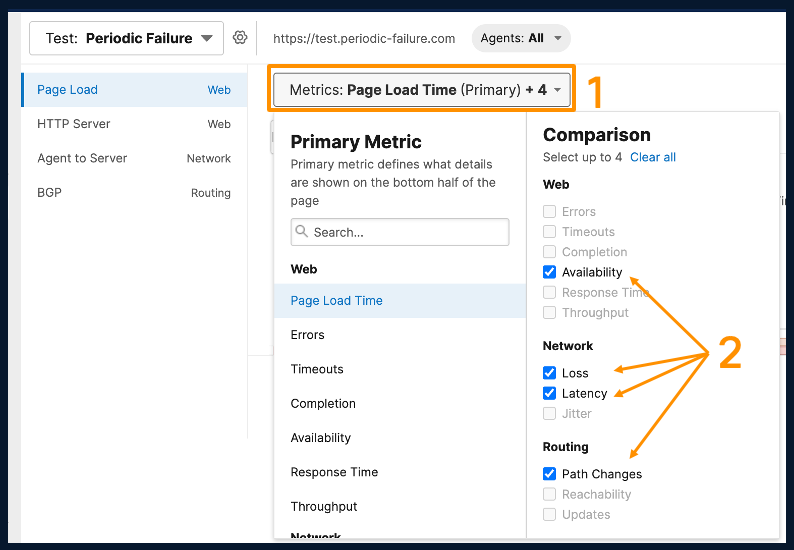
ThousandEyes synthetic test outputs can add additional layers to quickly pinpoint which layer the breakdown is starting at. Is a network issue affecting application availability? Is the network fine and the application is at fault? You can overlay up to 5 metrics at a time. In addition to the "Layer 8" synthetic Page Load, lets add the Layer 7 HTTP Server View, Layers 1 - 4 Network Views and Global BGP Updates to identify whats happening.
-
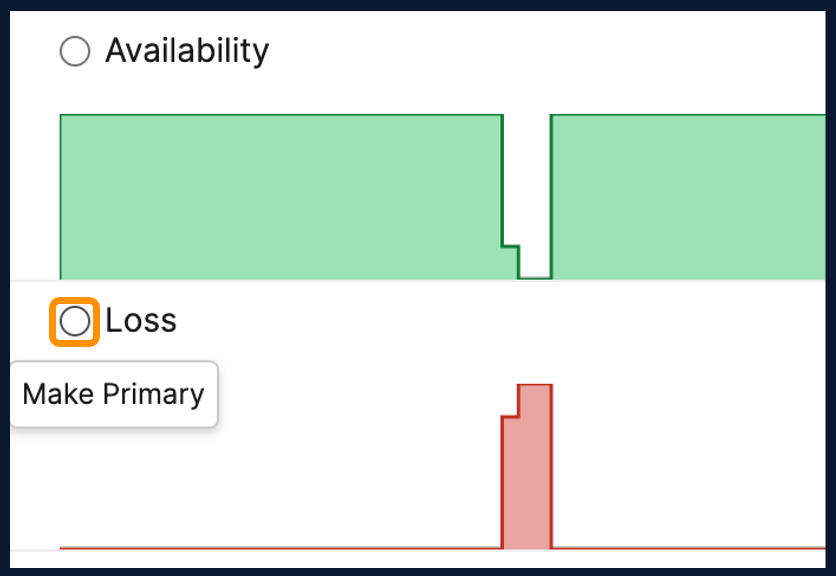
Make Loss the primary metric view by selecting the Radio Button next to Loss.
-
When you select the radio button, the map is now path visualization. Everything in ThousandEyes is time aligned. To determine what is happening - Select a time frame where you see an issue occurring, correlate with the various layers to determine where the problem is. Can you identify a node(s) do you see loss occurring on?
Step 4: Navigate to your Lab Account Group and Change Time Settings
-
At the top right of the screen (highlighted below in orange) use the drop down to navigate to your LAB account.
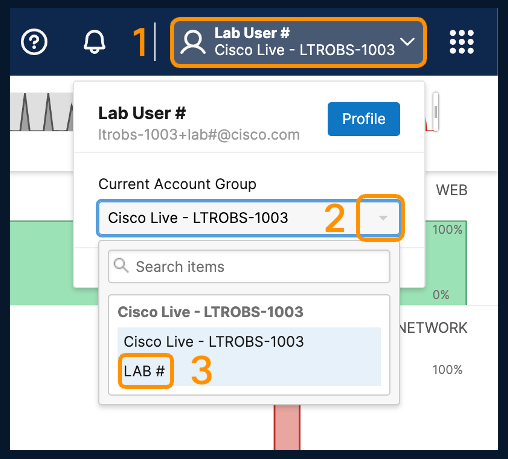
Navigation Challenge
Change your default time zone from UTC to a time zone of your choosing.
Your local time zone or current time zone (PST). You will find this
under ***Account Settings*** in the navigational pane on the left-hand side.
You have successfully completed Task 1!!