Task 3 - Inside -> Out Visibility from the Enterprise
Now that you have a better understanding of the navigation of the ThousandEyes Interface, the instructions are going to be a bit lighter. If you get stuck for any reason, the answers are in the main Cisco Live - LTROBS-1003 Account Group. Feel free to navigate over and look at the test configs.
Saakshi, Brett and Adam will be floating around the room if there are questions!
Step 1: Create Reachability Test to Microsoft Teams
As discussed, when initiating a Teams Call there are three things that take place. Authentication, Call Set Up, and Call Flow. In this step, create a test to each service.
Hint -- When selecting the Agents, use the Labels created from the previous section!
-
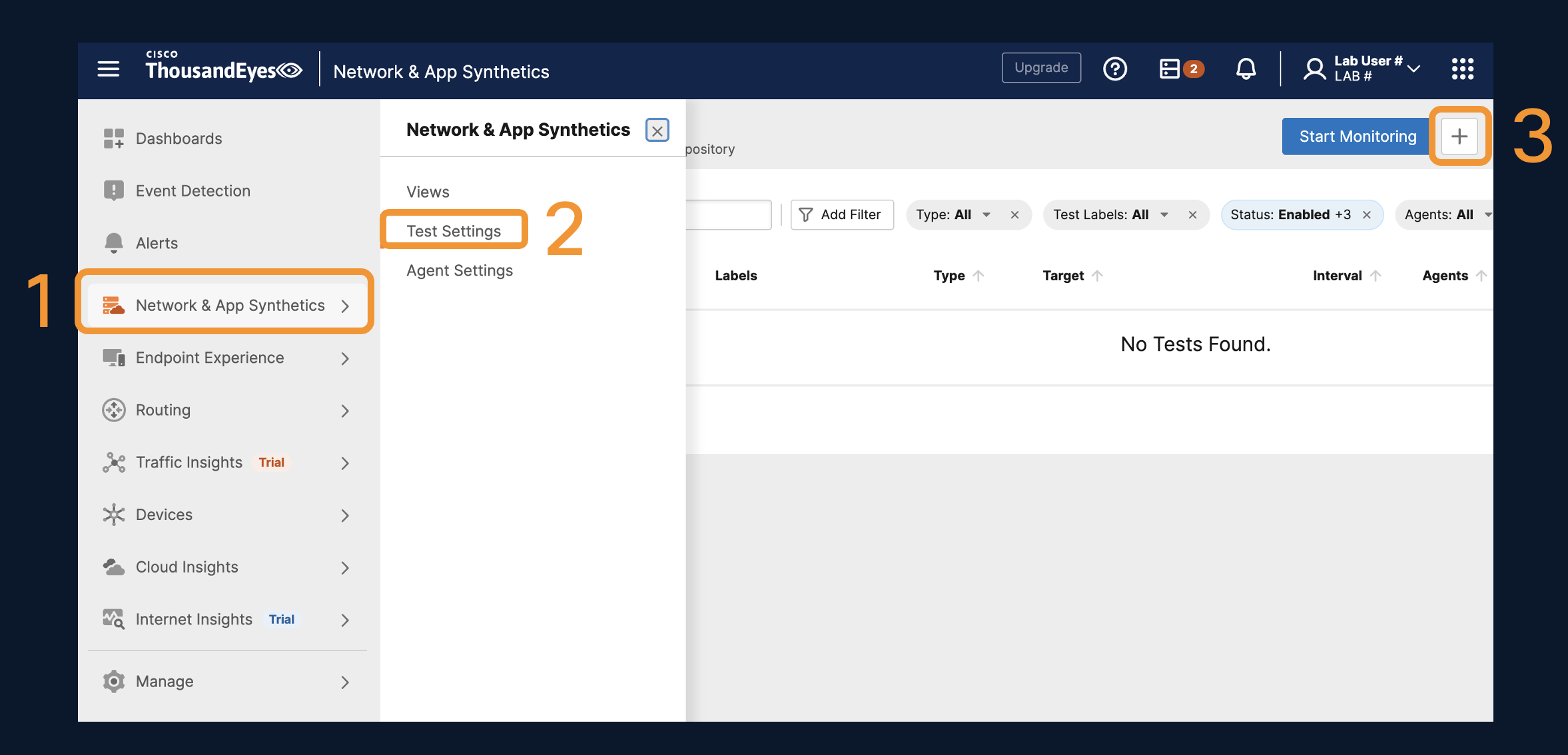
Navigate to Network & App Synthetics > Test Settings. Click the + icon to create a custom test.
-
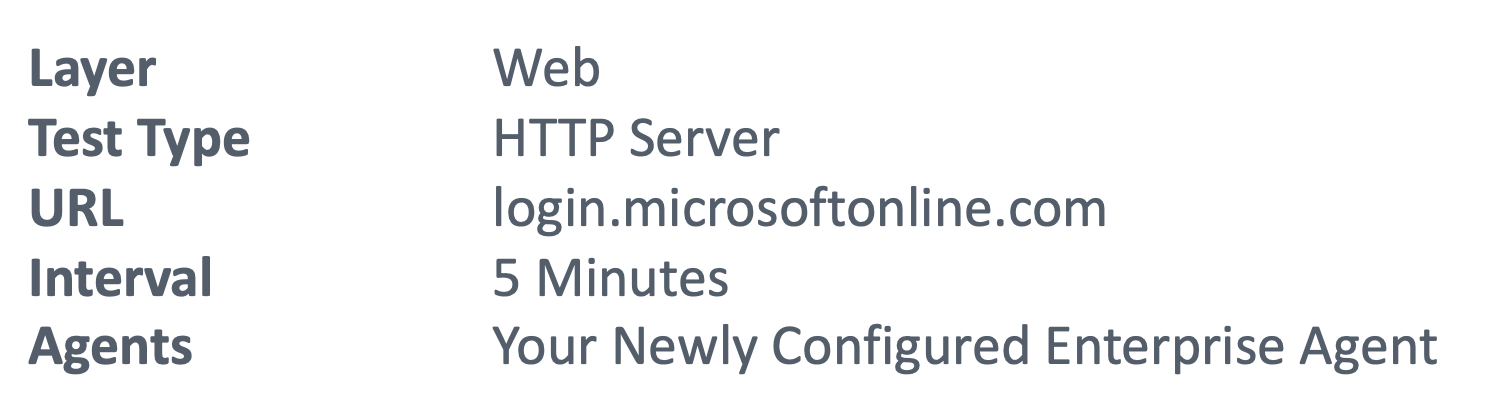
Create a test to Microsoft's Authentication Service using your newly created Enterprise Agent as the source.
-
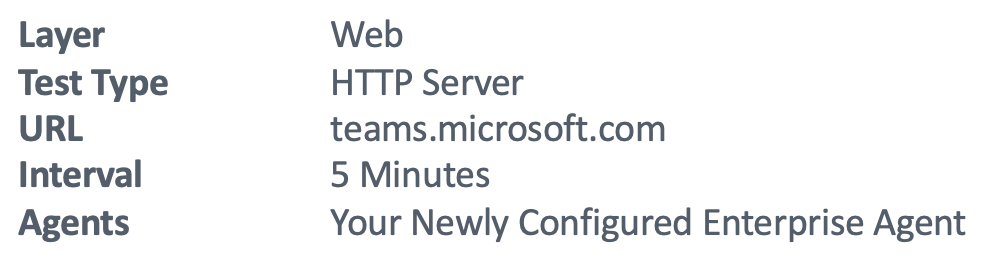
Create a test to Microsoft's Call Set Up Service using your newly created Enterprise Agent as the source.
-
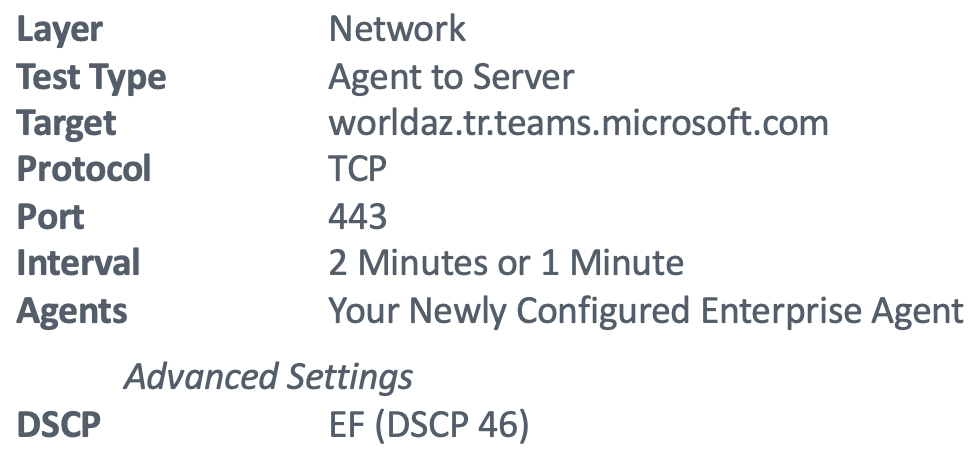
Create a test to Microsoft's Transport Relay using your newly created Enterprise Agent as the source.
Step 2: Create Webex Service Monitoring from Certified Template
Webex and ThousandEyes have additional integrations allowing for bidirectional testing using Cloud Agents. In this step we will set up two-way testing from the branch to Webex and from Webex back to the branch. This can help to diagnose one way audio or sharing issues. Webex defaults to using TCP port 5004. Webex will fall back to UDP port 5004 if TCP is not able to be established.
-
Navigate to Network & App Synthetics > Test Settings > Start Monitoring.
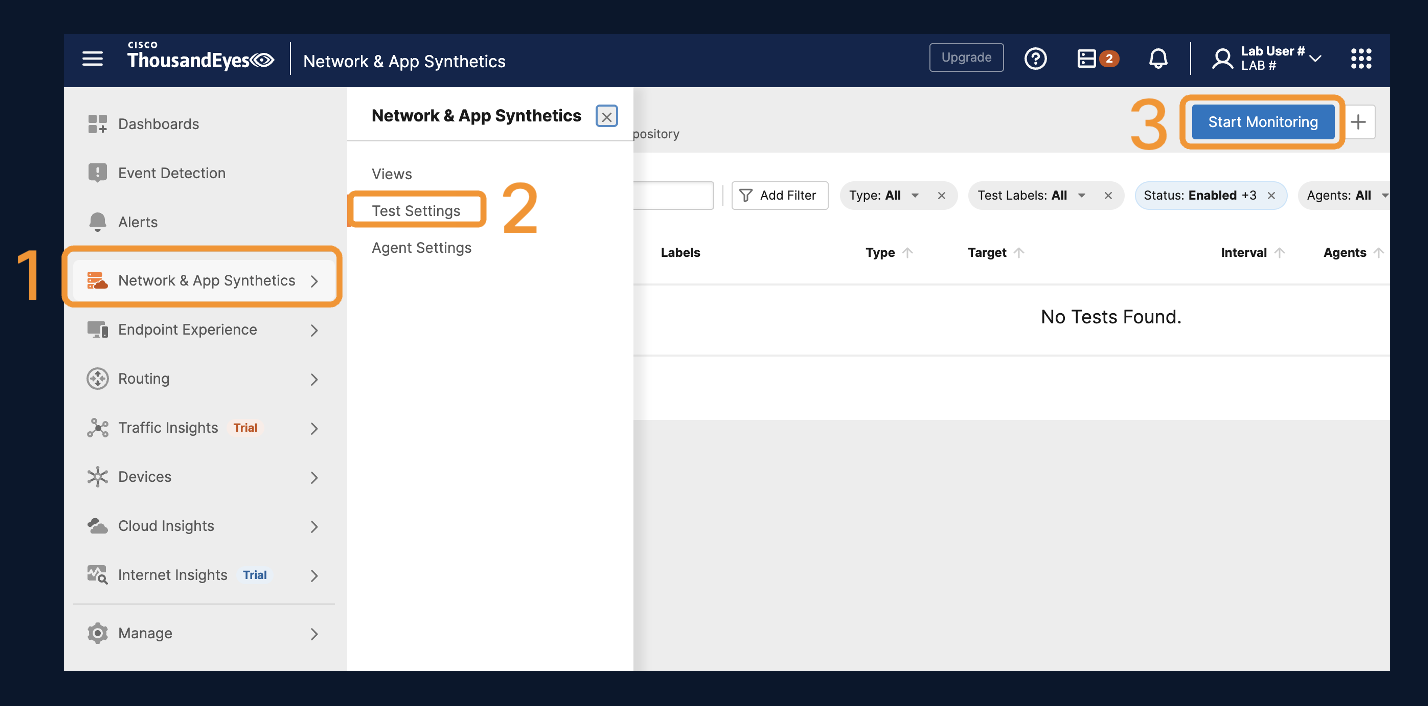
-
Scroll through and take a look at the current verified list of templates. Find Webex Meeting and open the template.
-
You will notice that four different tests that are preconfigured.
- Voice and Video stream testing using port 5004.
- Front Door Testing to your Webex instance.
- DNS Assurance for the Webex Platform.
-
Update the configurations as follows.
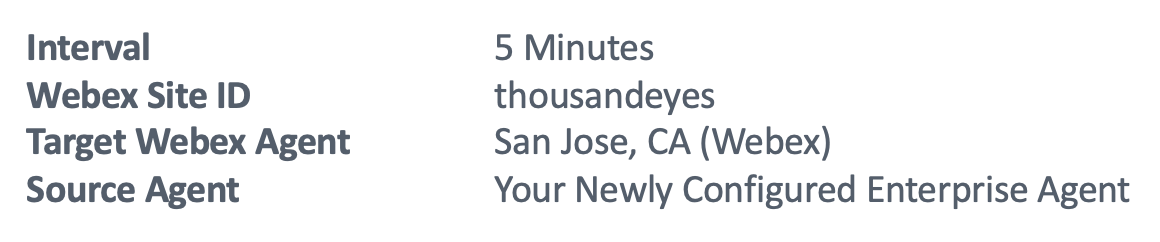
-
Deploy the Template. Notice the difference of using a template vs a manual test creation like you just created for Microsoft Teams.
Note: You can use Custom Templates to gain access to the automated dashboards, alerts, and labels for easy filtering.

Step 3: Verify Connectivity in Test Views
Once all the tests are created, navigate to Network & App Synthetics > Views and verify the testing you have is working end to end for each test type.
If end to end connections are not working, proceed to troubleshoot by adjusting test settings in the previous steps.
Once verified tests are working correctly proceed to next step.
Step 4: Applying the Knowledge
A common operating language is imperative to a successful operations team. Application Teams, Collaboration Teams, Network Teams and Desktop Teams all speaking the same language dramatically reduces MTTI and MTTR.
Scenario
You recently received a ticket from the voice team saying that calls in a couple branch locations are choppy. The telecom team escalated to the SIP provider but they are saying its all clear on their end.
-
Your collaboration team provided you with this interactive snapshot to troubleshoot: Launch All Branches -- Real Time Protocol (RTP) Voice Stream Testing in another browser tab to begin. You see the Mean Opinion Score (MOS) in the graph. It is below the expected score of 4.4
-
The Mean Opinion Score (MOS) is a KPI that is derived from network metrics like Loss, Latency, Packet Delay Variation or Jitter and Packet Discards on the wire.
-
You want to investigate the Path Visualization, you notice two agents on the left are not green. Mouse over Core: agent.west.us
What metrics are causing the MOS Score to drop below the acceptable threshold?
Click to Reveal Answer
Loss is at 25%
Discards are approaching 20%
Packet Delay Variation is above 50 milliseconds.
- You quickly determine that this appears to be a network related issue.
Which node in path visualization is causing the network Loss and Packet Delay Variation (PDV) also known as Jitter?
Click to Reveal Answer
The red node in path is 10.102.17.1. Hover over the node and see more metrics.
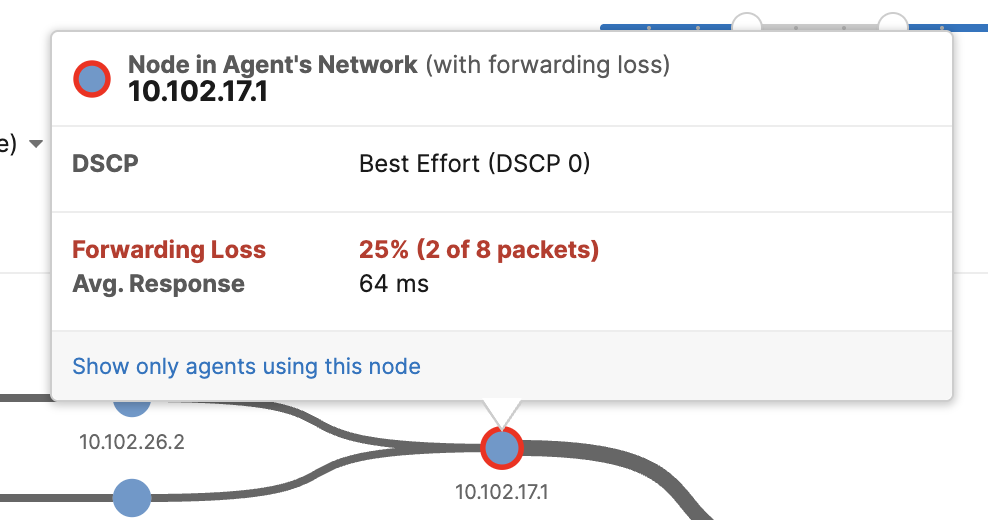
- You remembered the new network admin had a change and installed a new Layer 3 Switch at the head end over the weekend. You wonder -- Did they make a mistake and miss a configuration? Click Info (1) and select the newly populated information.
What is the root cause of the disruption?
a.  Voice is not my problem.

b.  Voice traffic is being remarked from DSCP EF to Best Effort.

c.  DNS is wrongly configured.

d.  Suboptimal routing, it should be taking a shorter path.
Click to reveal answer.
b. Voice traffic is being remarked from DSCP EF to Best Effort. Networks use Quality of Service (QoS) to prioritize types of traffic, voice traffic is given the highest priority on the network. The blue highlighted links show exactly where the QoS changes and is no longer preferring voice traffic.You have successfully completed Task 3!!