Task 5: Remote Access VPN
In previous tasks, Inside > Out egress testing was used to gain end to end visibility fro an end user perspective in the office connecting to applications external to your network. In this task, use ThousandEyes hosted Cloud Agents to do Outside > In ingress testing to a service consumed publicly.
Step 1: Stay in your Lab Account Group
-
Make sure you are still in the lab Account Group. LAB 1 - 30
-
Navigate to Start Monitoring to display all the test templates. In this step, you will use Custom Test Templates.
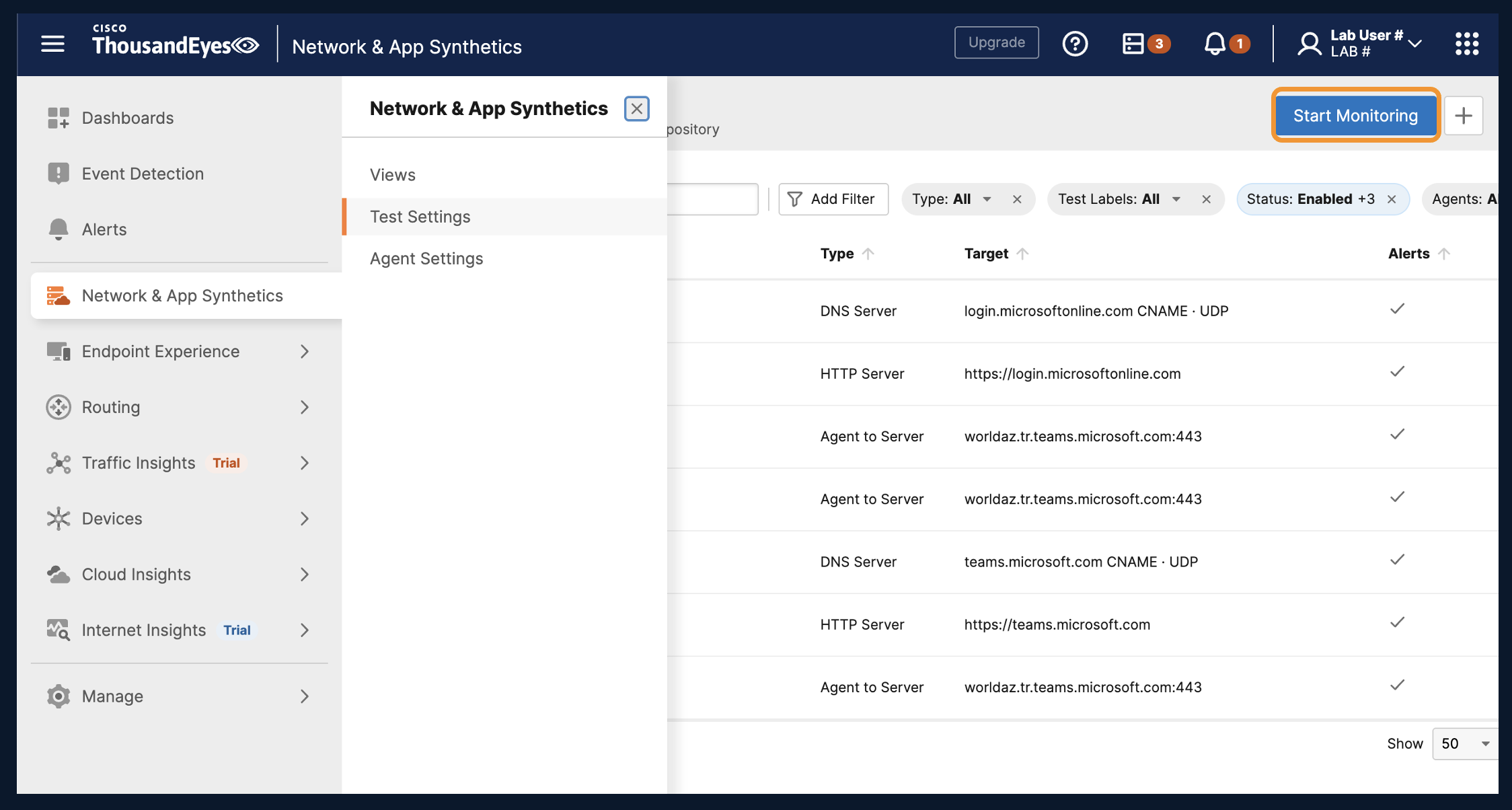
Step 2: Create a Test to Your Company's Remote Access VPN (skip to Step 3 if you want to use Cisco's VPN Service)
-
In this step, the test type and settings are up to you. Depending on how your Remote Access Service responds, create an appropriate test. Use (a) or (b) below depending on how the service is accessed.
Hint: If you know the URL of the VPN, try to navigate to it in a web browser. Does it respond?
- (a) If the service responds on the Web Layer -- use a Web Layer Test.
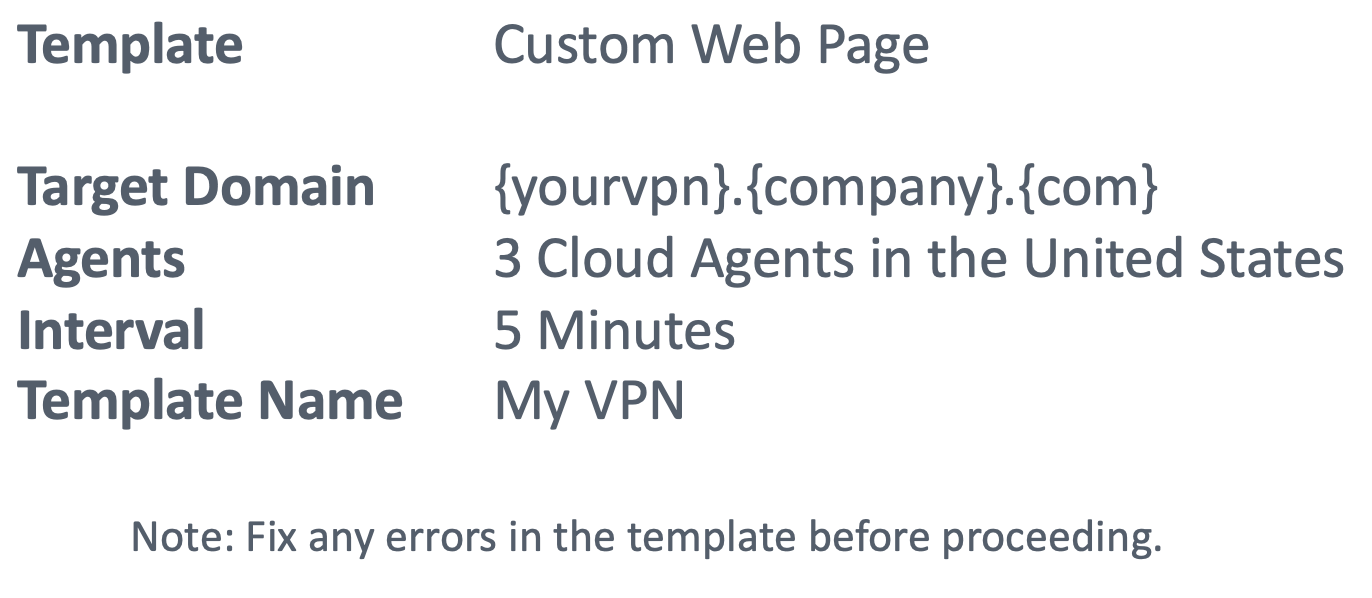
- (b) If you are targeting a Firewall, use a Network Layer Test.
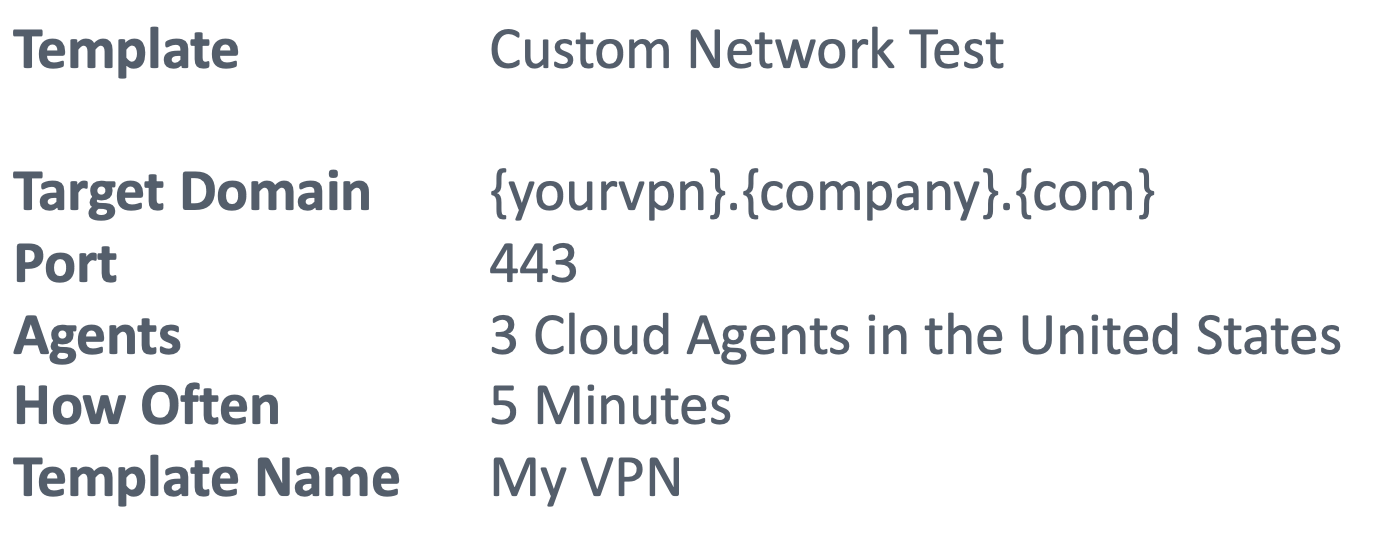
Step 3: Create a test to Cisco's VPN Head End.
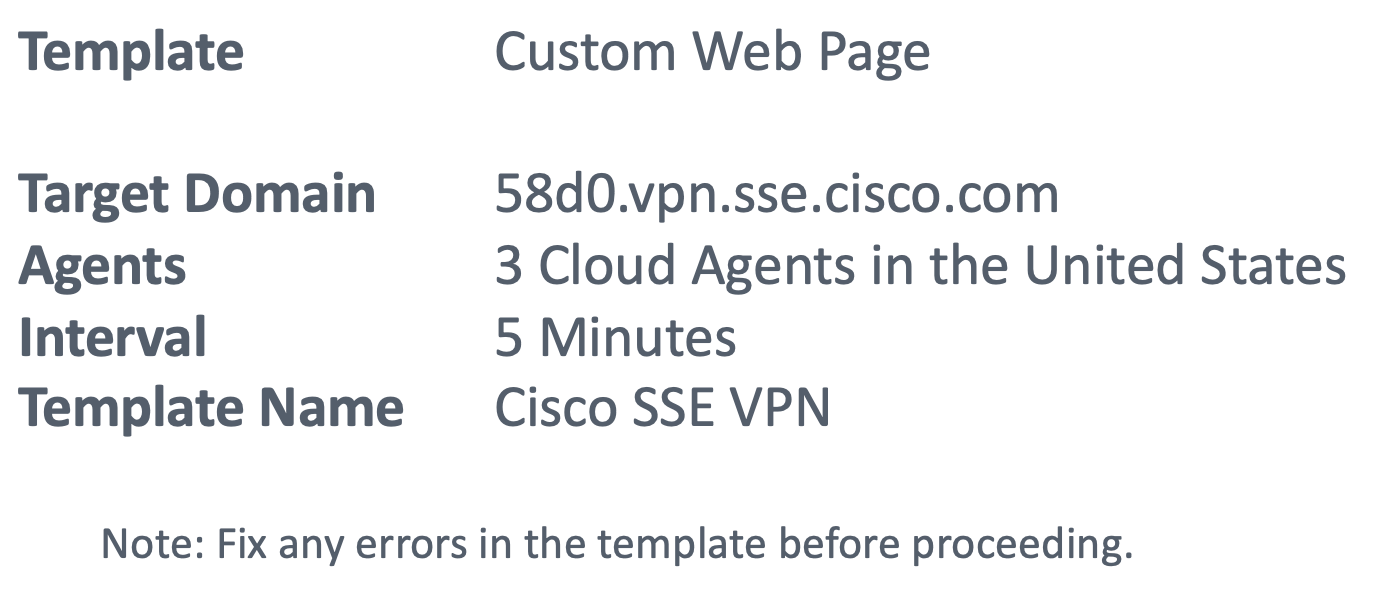
- In this step, Cisco's VPN Service has already been identified for you - 58d0.vpn.sse.cisco.com. Use the Custom Web Page template and the settings below to create a reachability test.
Step 4: Investigate Cisco's VPN Service
-
Navigate back to Network & App Synthetics > Views.
-
If you are not already there, drop into the newly created Cisco SSE VPN Test.
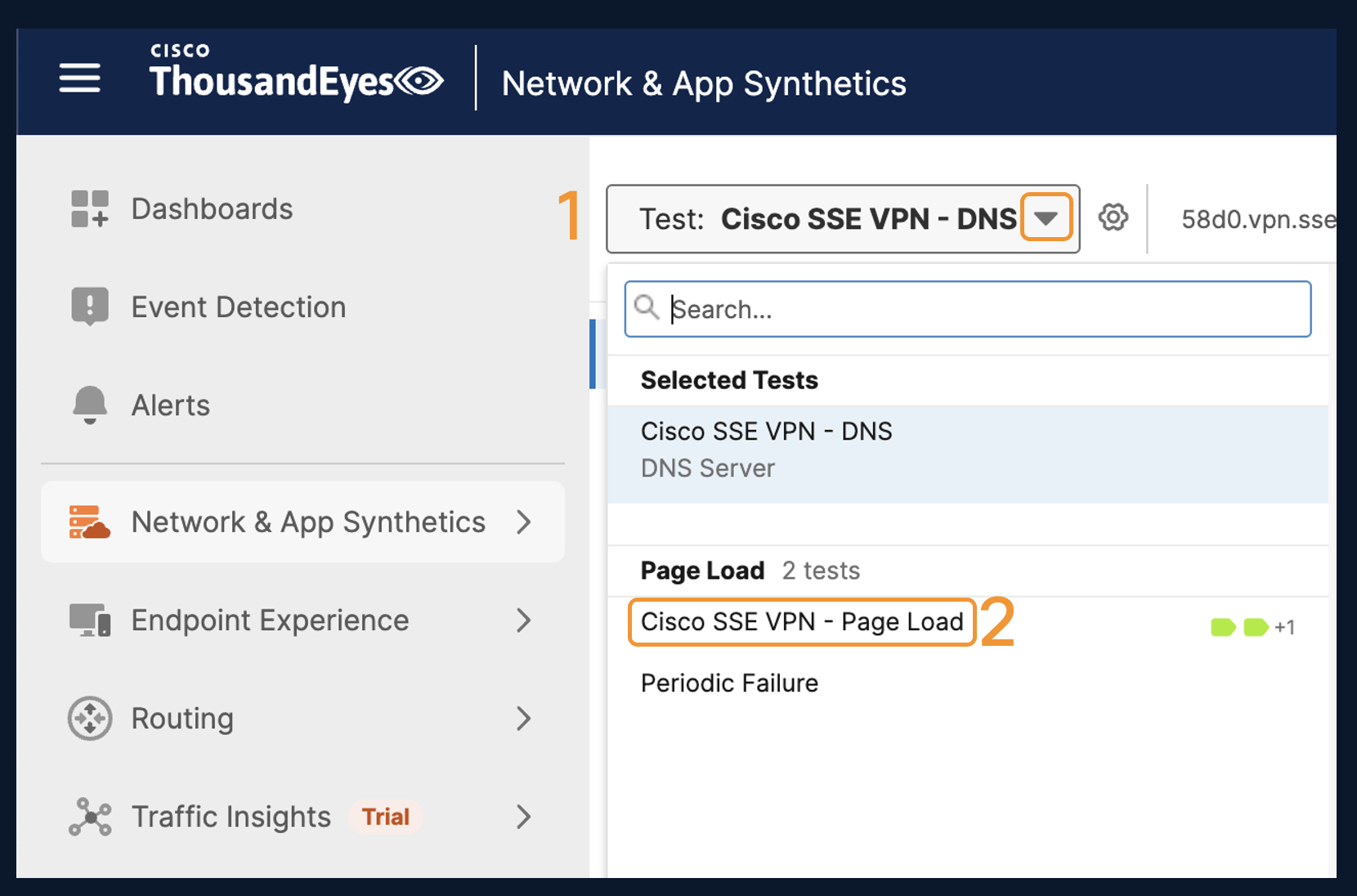
-
Just like in Task 1 - add Metrics for Page Load, Availability, Response Time, Loss and Latency.
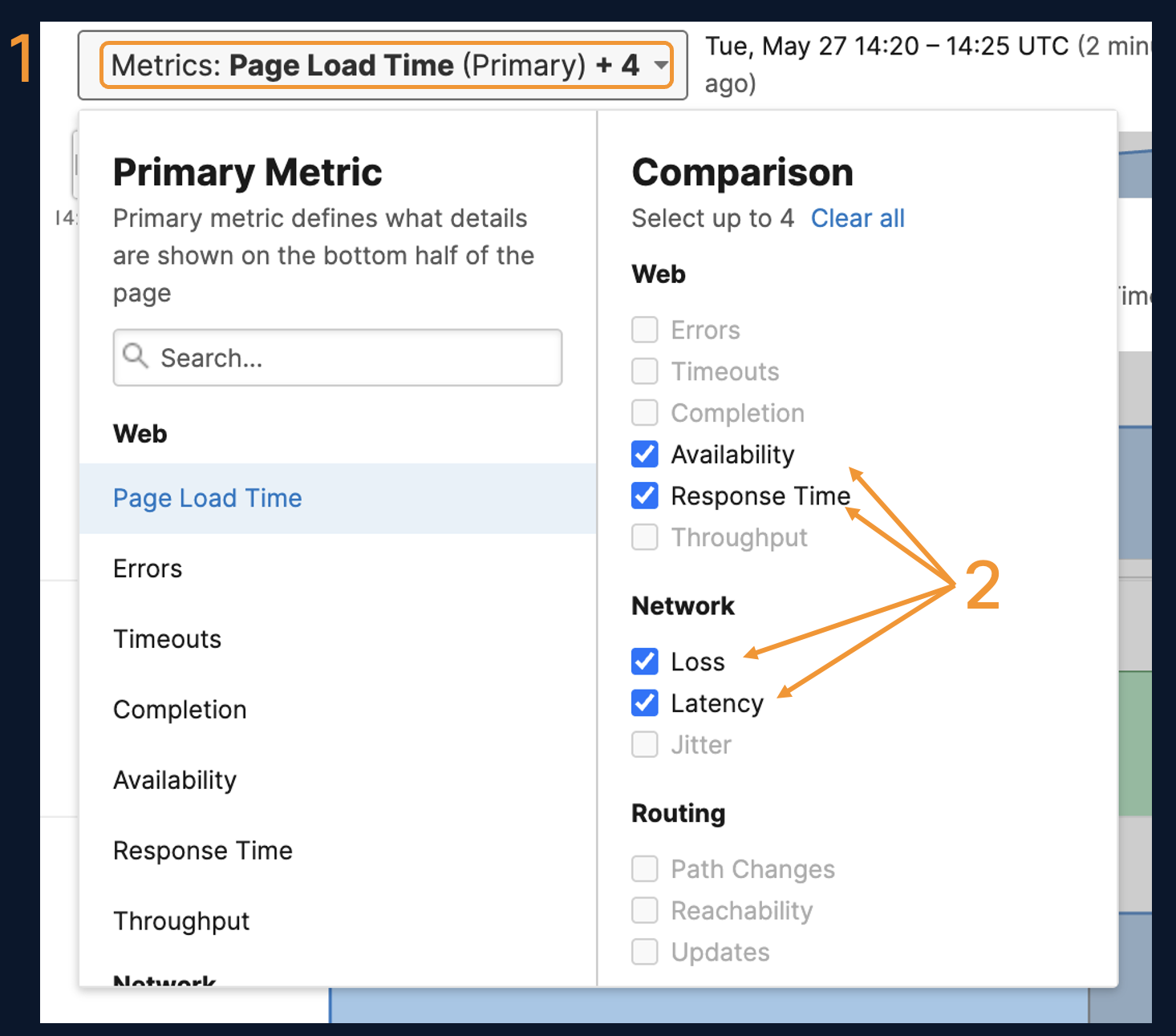
-
Notice the map view below as Page Load is the current primary metric. This is showing the average page load time from the Cloud Agents. Select the Radio Button next to Loss to set that as new primary metric. Notice the page below updates with the path visualization.
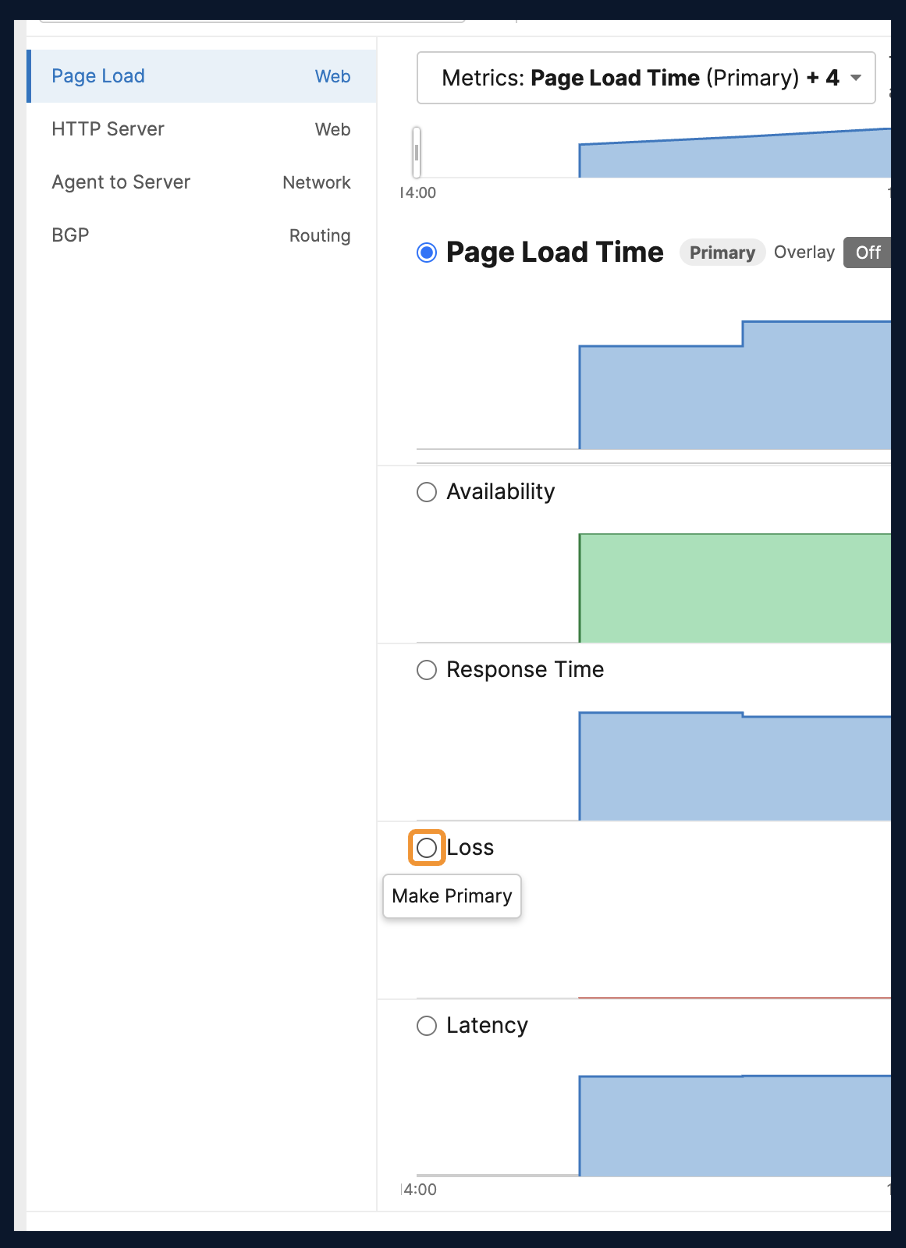
-
What is something you notice about where Cisco's VPN service is hosted?
Step 5: Applying the Knowledge
Let's circle back to the SD-WAN VPN from earlier discussion. In this step, navigate ThousandEyes to troubleshoot a real-world problem.
Deploying SD-WAN requires well-performing underlay circuits that the tunnels ride on. Through Cloud & Enterprise Agents, ThousandEyes provides insights into the SD-WAN overlay and more importantly the SD-WAN underlay pointing out where the performance issues occur.
Scenario
You have recently deployed SD-WAN globally. Your team has implemented ThousandEyes to get insights into to the overlay and underlay of the SD-WAN tunnels. Your NOC has been alerted to an issue, they escalate to your team to investigate. An outage was experienced today, and you need to identify the root cause so you can write a post mortem on where the problem is.
The NOC provides you following snapshots of the event to investigate.
-
Launch into the SD-WAN Overlay Visibility interactive snapshot to begin.
How many branch offices have the ThousandEyes agents installed?
Click to Reveal Answer
4

Ashburn, Chicago, London and San Jose. You can drop into Table view to see the Agent Names on the left hand side.
-
During the course of your investigation, you observe a spike in Page Load time.
In which city did the branch office experience a page load of >11s?
Click to Reveal Answer
The Map view in the Page Load metric is a great place to look to understand what the scope of an outage is.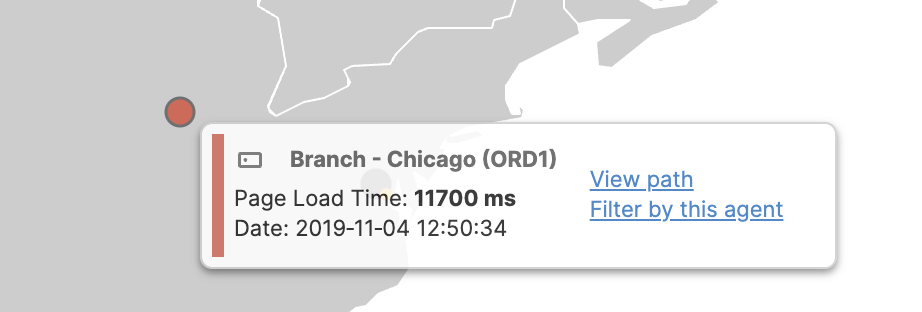
-
In the map view, you notice a red agent but just as important, you notice a grey agent indicating a branch office is not able to connect to the application at all.
In which city is this branch office located?
Click to Reveal Answer
Ashburn -
The greyed out Agent that is not connecting is interesting. You want to check if its related to a network issue. You navigate to the Loss metric to show the path view and end-to-end network loss.
You notice one office has 100% loss. -- which node/IP Address is dropping the packets?
Click to Reveal Answer
10.202.4.254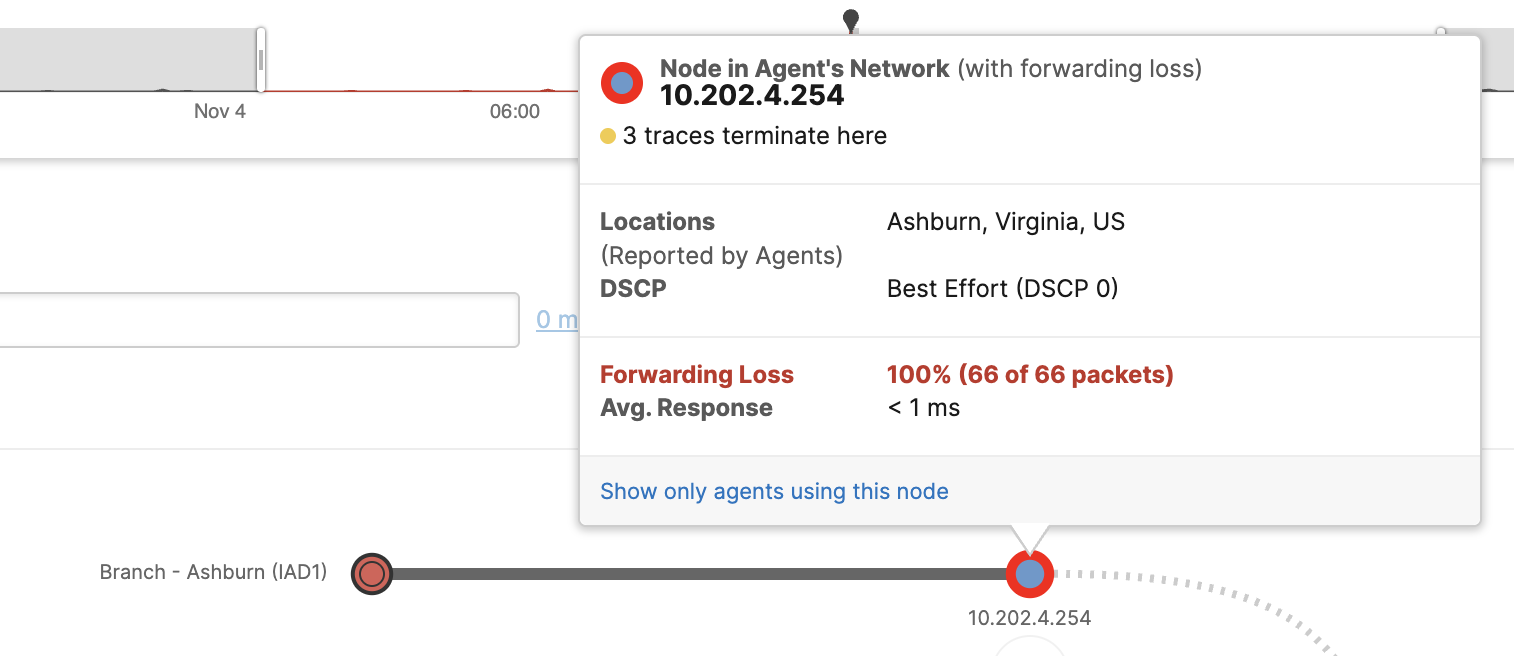
As previously stated - SD-WAN visibility requires to see both the overlay and underlay. Having explored the SD-WAN overlay, consider what you have observed with respect to high page load times.
-
Click on the SD-WAN Underlay Visibility interactive snapshot. Navigate to the same time where you observe high packet loss to see which ISP is experiencing network issues.
What is the root cause of the disruption?
a. Cloud Provider Issues
b. SD-WAN Orchestrator
c. ISP Outage
d. SD-WAN Tunnel Issue
Click to Reveal Answer
c. ISP Outage. The ThousandEyes path trace provides visibility into networks you rely on but don't own. Hovering over the red transit nodes show a common theme that all the loss is occurring in Quests Network.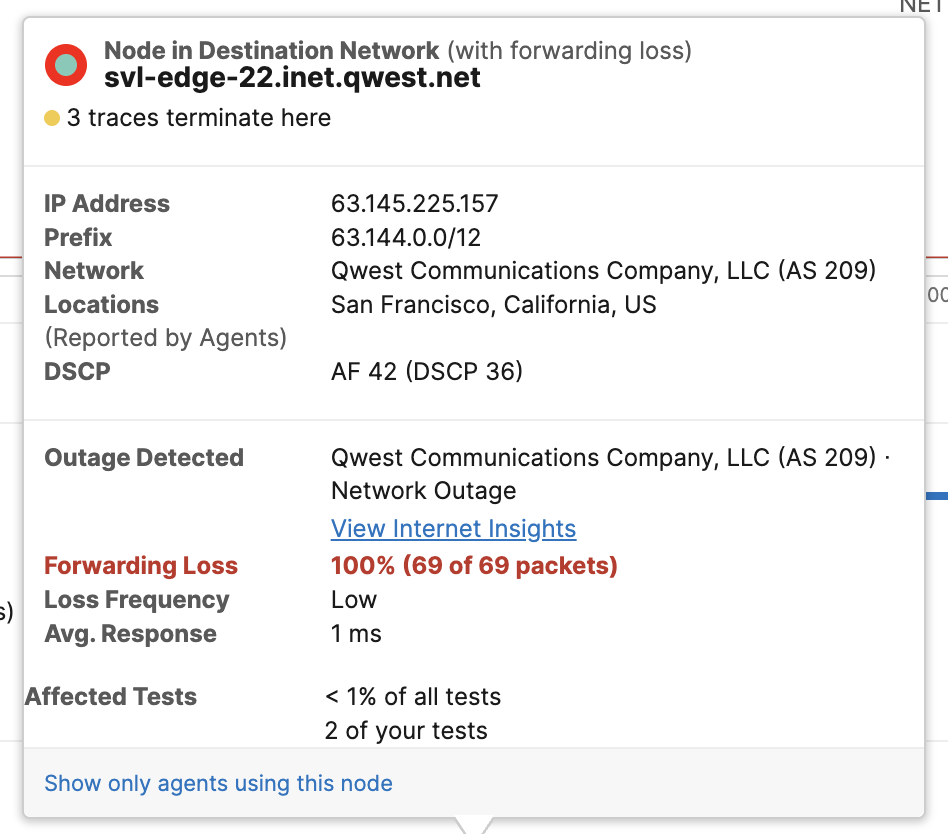 There are over 8 Billion Tests that are ran on top of the ThousandEyes platform daily.
Through advanced algorithms, we look for commonalities in the data sets.
When a common network or SaaS application event is detected, its tagged as an Internet Insights event as shown by the purple bar in the swim lane. Further proving its a Quest Network issue at fault.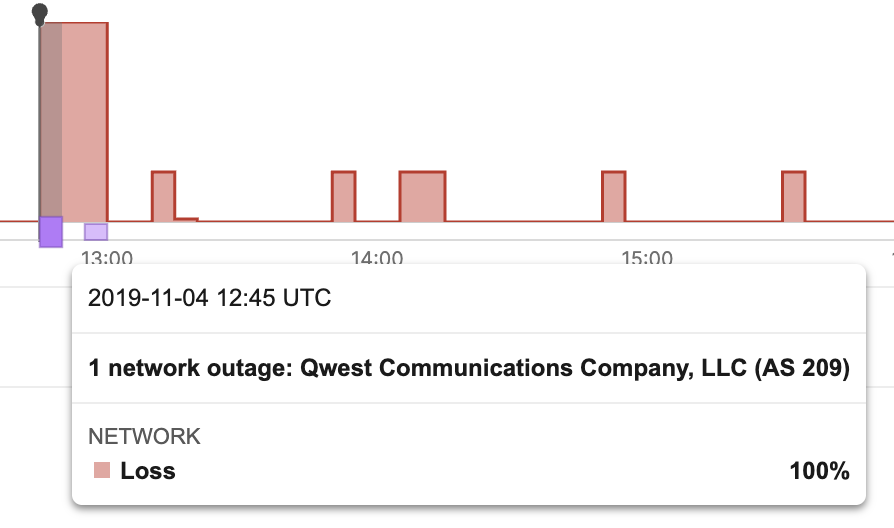
You have successfully completed Task 5!!